YOLO Object Detection
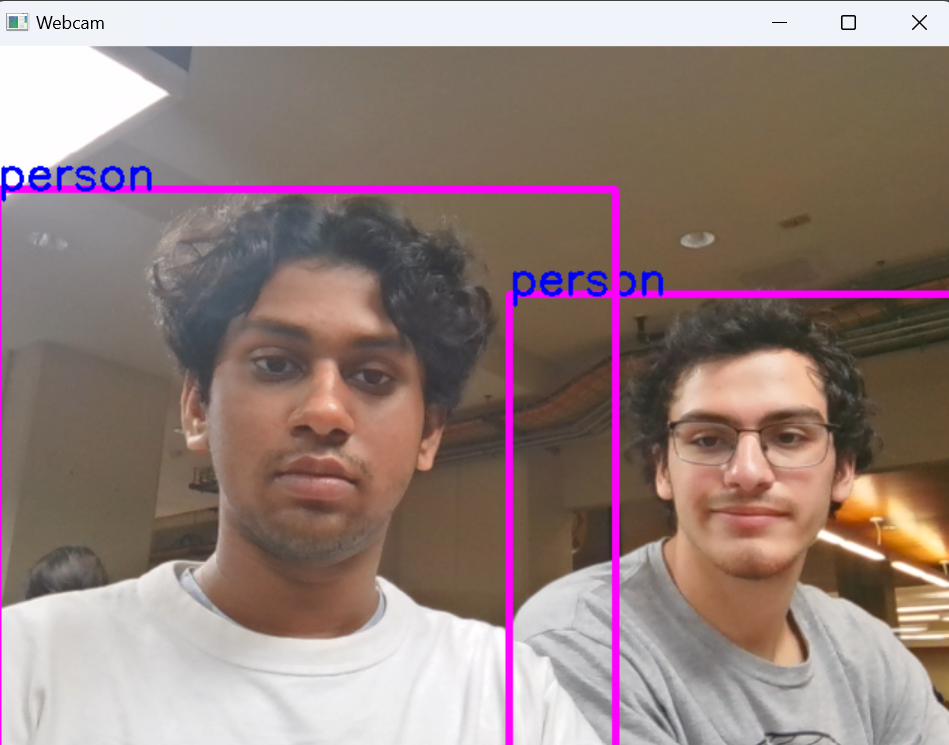
Object detection has become increasingly accessible with the combination of Roboflow and YOLO (You Only Look Once), a popular deep learning model for real-time object detection. Here’s a guide to using Roboflow and YOLOv8 with Python to create a live object detection system with your webcam.
Today, we’re leveraging the powerful integration of Roboflow’s data services and YOLO’s robust object detection capabilities. This setup allows you to detect various objects in a video stream, such as a live webcam feed, and visualize the detections in real time.
Step 1: Setting Up Roboflow and YOLO
First, ensure that you have the required libraries installed.
- Install Python: Ensure you have Python 3.6 or later installed on your machine. You can download it from python.org. Python 3.13 is not currently supported with PyTorch at this time.
- Install the necessary Python libraries using pip. Open a terminal or command prompt and run the following command: pip install ultralytics opencv-python-headless roboflow
- Set Up Roboflow API Access. Create a Roboflow Account: Go to Roboflow and sign up for an account if you don’t already have one. Create a Project in Roboflow: After signing in, create a project and upload your dataset. Make sure to annotate the images and prepare the dataset for object detection. Get Your API Key: You’ll find your API key in the Roboflow dashboard under Settings > API.
- Download the YOLOv8 Model Weights The script assumes you’re using the YOLOv8 small model (yolov8s.pt). You can download this directly from Ultralytics, or if you already have the weights, ensure they are in the same directory as the script. To use a different YOLOv8 model (e.g., YOLOv8n for a faster but lighter model), replace “yolov8s.pt” in the script with the name of the model you want to use.
Step 2: Run the script
Import libraries
from ultralytics import YOLO  # Import YOLO model from Ultralytics
import cv2                   # Import OpenCV library
import math                  # Import math module for mathematical operations
import roboflow

# Start webcam
cap = cv2.VideoCapture(0)     # Open
cap.set(3, 640)               # Set frame width to 640 pixels
cap.set(4, 480)               # Set frame height to 480 pixels

roboflow.login()
rf = roboflow.Roboflow()
project = rf.workspace("yolo-project").project("buoy")
dataset = project.version(5).download("yolov8")


model = YOLO("yolov8s.pt")  # Load the YOLOv8 model

# Define object classes for detection
classNames = ["person", "bicycle", "car", "motorbike", "aeroplane", "bus", "train", "truck", "boat",
              "traffic light", "fire hydrant", "stop sign", "parking meter", "bench", "bird", "cat",
              "dog", "horse", "sheep", "cow", "elephant", "bear", "zebra", "giraffe", "backpack", "umbrella",
              "handbag", "tie", "suitcase", "frisbee", "skis", "snowboard", "sports ball", "kite", "baseball bat",
              "baseball glove", "skateboard", "surfboard", "tennis racket", "bottle", "wine glass", "cup",
              "fork", "knife", "spoon", "bowl", "banana", "apple", "sandwich", "orange", "broccoli",
              "carrot", "hot dog", "pizza", "donut", "cake", "chair", "sofa", "pottedplant", "bed",
              "diningtable", "toilet", "tvmonitor", "laptop", "mouse", "remote", "keyboard", "cell phone",
              "microwave", "oven", "toaster", "sink", "refrigerator", "book", "clock", "vase", "scissors",
              "teddy bear", "hair drier", "toothbrush"]


# Infinite loop to continuously capture frames from the camera
while True:
    # Read a frame from the camera
    success, img = cap.read()

    # Perform object detection using the YOLO model on the captured frame
    results = model(img, stream=True)

    # Iterate through the results of object detection
    for r in results:
        boxes = r.boxes  # Extract bounding boxes for detected objects

        # Iterate through each bounding box
        for box in boxes:
            # Extract coordinates of the bounding box
            x1, y1, x2, y2 = box.xyxy[0]
            x1, y1, x2, y2 = int(x1), int(y1), int(x2), int(y2)  # Convert to integer values

            # Calculate and print the confidence score of the detection
            confidence = math.ceil((box.conf[0]*100))/100
            print("Confidence --->", confidence)

            # Draw the bounding box on the frame if confidence is greater than 0.75
            if(confidence > 0.75):
                cv2.rectangle(img, (x1, y1), (x2, y2), (255, 0, 255), 3)

            # Determine and print the class name of the detected object
            cls = int(box.cls[0])
            print("Class name -->", classNames[cls])

            # Draw text indicating the class name on the frame
            org = [x1, y1]
            font = cv2.FONT_HERSHEY_SIMPLEX
            fontScale = 1
            color = (255, 0, 0)
            thickness = 2
            if(confidence > 0.75):
                cv2.putText(img, classNames[cls], org, font, fontScale, color, thickness)

    # Display the frame with detected objects in a window named "Webcam"
    cv2.imshow('Webcam', img)

    # Check for the 'q' key press to exit the loop
    if cv2.waitKey(1) == ord('q'):
        break

# Release the camera
cap.release()

# Close all OpenCV windows
cv2.destroyAllWindows()